How to Turn Any Old TV into a Smart TV (For Under £30!)
Is there anything more frustrating than a perfectly good television that has become “dumb”?
perhaps you have a 10-year-old Sony in the bedroom that still has a great picture, but it can’t connect to the internet. Or maybe you have an early “Smart TV” that has started showing the dreaded message: “This app is no longer supported.”
It feels wasteful to throw away a working screen just because it can’t play Netflix anymore. The good news is: you don’t have to.
You do not need to spend £500 on a new 4K telly. You can upgrade your existing one in about five minutes, usually for less than the price of a takeaway.
Here is the simple guide to making any old TV smart again.
🛑 The Checklist: What Do You Need?
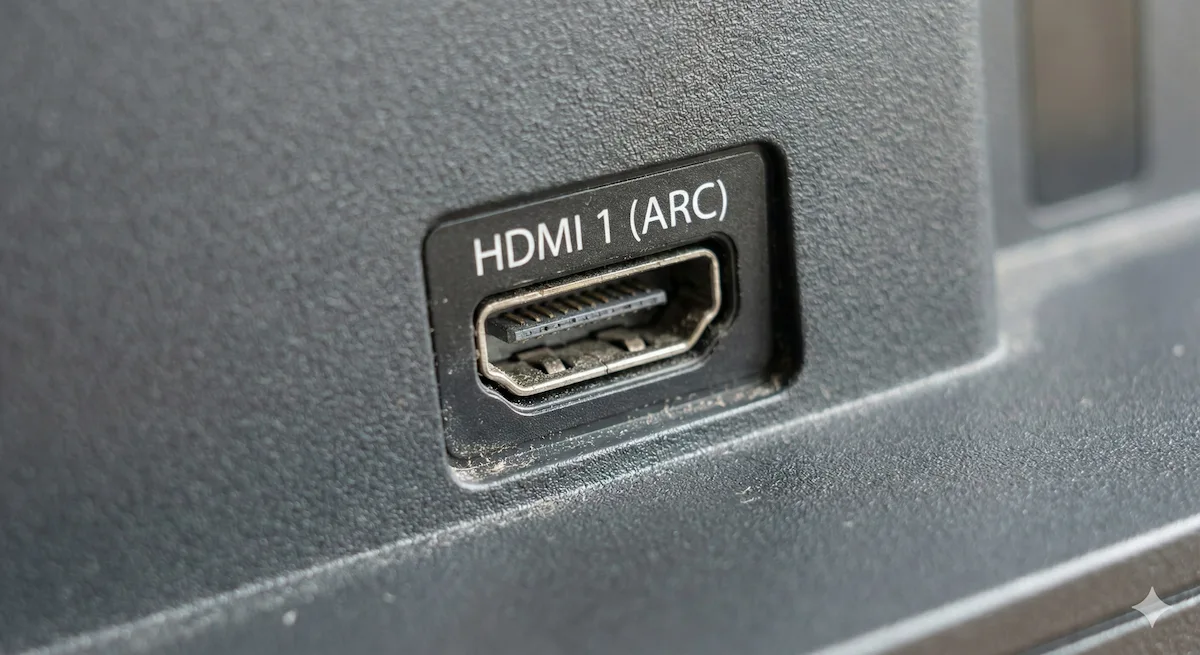
Before you buy anything, you need to check the back of your old TV. You are looking for one specific port.
1. An HDMI Port
This looks like a slightly wider USB port, usually found on the back or side of the TV. It will be labeled HDMI 1, HDMI 2, etc.
- Good News: Almost every TV made after 2008 has one of these.
- Bad News: If your TV is very old (the big boxy CRT style) and only has red, white, and yellow circular plugs (SCART/RCA), this method won’t work easily.
2. Decent Wi-Fi
The new “brain” you are about to buy needs a good internet connection to stream video without buffering.
🧠 The Solution: The “Streaming Stick”
The secret is that you don’t need a new screen; you just need a new computer to run the apps.
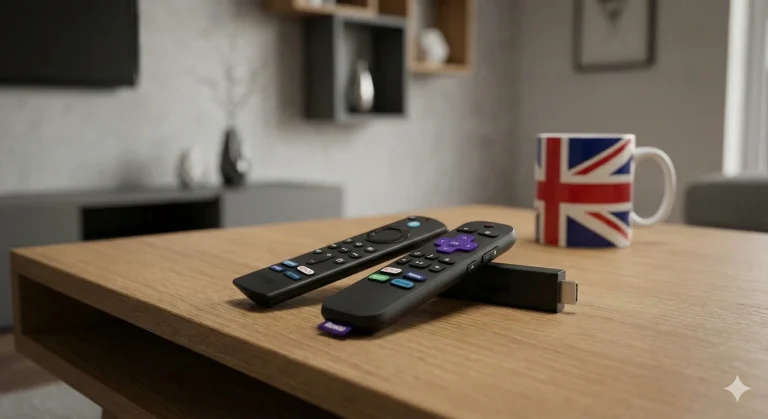
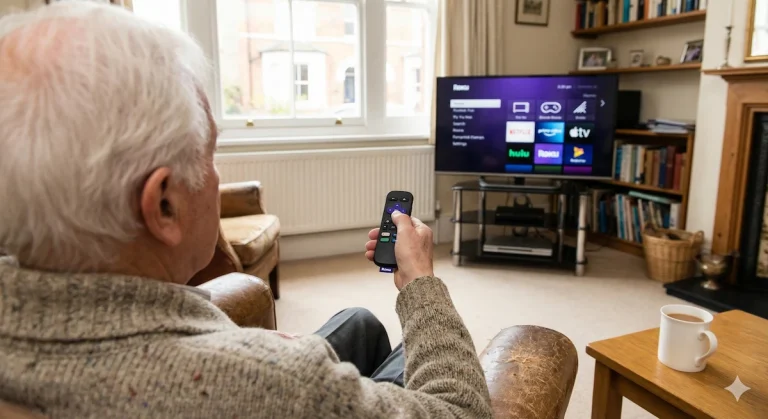
A “Streaming Stick” is a tiny computer, about the size of a highlighter pen, that plugs directly into that HDMI port. It bypasses your TV’s old, slow menu and replaces it with a slick, modern interface packed with the latest apps like BBC iPlayer, ITVX, Netflix, Disney+, and YouTube.
They are cheap, fast, and incredibly easy to install.
The 3-Step Setup Guide
Step 1: Plug it in Take the streaming stick and plug it directly into the HDMI port on the back of your TV.
Step 2: Power it up Streaming sticks need power. They come with a USB cable and a plug (just like a phone charger). Plug one end into the stick and the other into a wall socket.
Step 3: Switch inputs Turn on your TV. Grab your old TV remote and press the button labeled “Source” or “Input” until you see the new Welcome screen appear.
That’s it. Now just use the new remote that came with the stick to connect to your Wi-Fi and log into your apps.
🛍️ Which Stick Should You Buy? (The Budget Option)
Since you are trying to save an old TV, you probably don’t want to spend a fortune.
You don’t need a fancy 4K model (because your old TV probably isn’t 4K anyway). You need a reliable “HD” model.
Here are the two best budget options in the UK right now.
Option 1: The Simplest Choice (Recommended)
Roku Express HD
If you are not very technical, buy this one. Roku is famous for being incredibly simple. The menu is just a grid of apps. It doesn’t try to sell you things; it just lets you watch TV. It works perfectly with all UK catch-up services.
- Typical Price: Around £29.99 (often cheaper on sale).
- Best Feature: The easiest menu system on the market.
👉 Check Latest Roku Price on Amazon
Option 2: The Smart Home Choice
Amazon Fire TV Stick Lite
If you already have Amazon Prime, or you like the idea of using voice control, get this. It comes with an Alexa Voice Remote Lite. You can press a button and say “Alexa, find comedies on Netflix,” which saves a lot of typing.
- Typical Price: Around £34.99 (Amazon discounts this heavily, often down to £20).
- Best Feature: Alexa voice control built-in.
👉 Check Latest Fire TV Price on Amazon
Final Verdict
Don’t send that old TV to the landfill just yet.
For a tiny investment of around £30 and five minutes of setup time, you can give it a complete brain transplant. It will likely be faster, slicker, and have more apps than even a brand-new budget Smart TV.