Fire Stick Stuck on a Green Screen? Here is the 2-Minute Fix
Last Updated: February 2026
You settle down to watch a movie, switch your TV source to the Fire Stick, and… BAM.
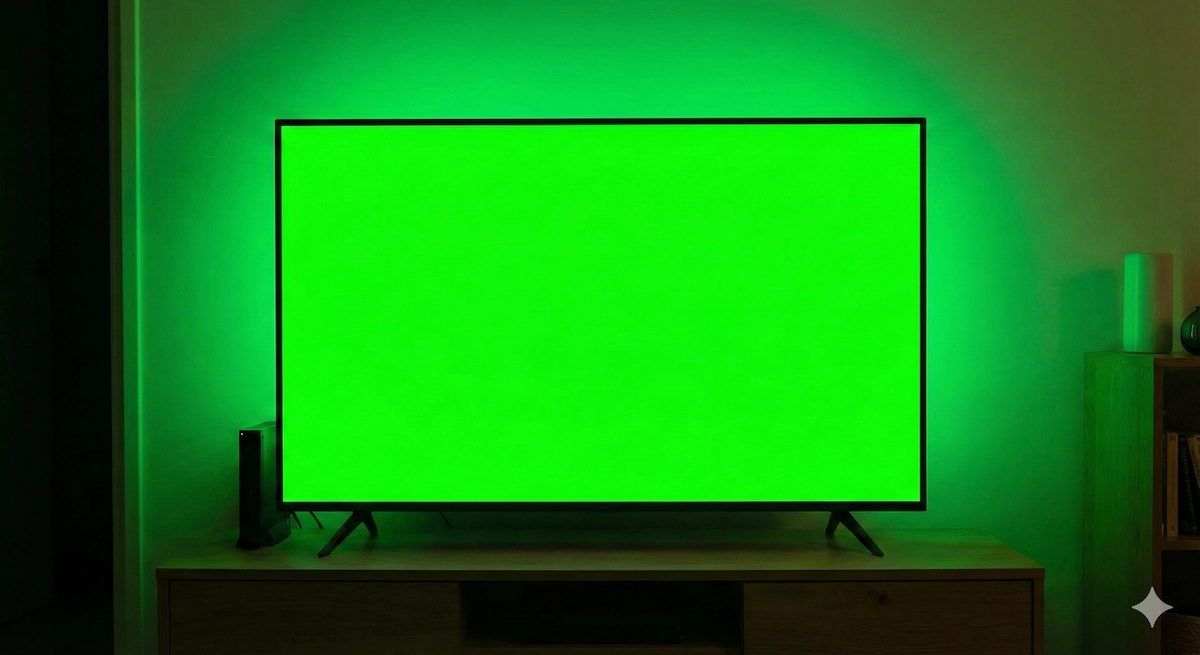
Your entire screen is a flat, bright shade of neon green. Sometimes it flickers, sometimes it’s solid, and sometimes you can faintly see the Amazon menu ghosting in the background.
First off: Don’t panic, your TV is not broken!
This is one of the most common glitches in the world of HDMI devices. It is known as an “HDCP Handshake Failure.” Basically, your TV and your Fire Stick have had an argument about copy protection, and they have stopped talking to each other.
Here is how to force them to shake hands and get your picture back.
🔧 Fix #1: The Resolution Cycle (The Magic Button Trick)
You don’t need to unplug anything yet. You can often force the Fire Stick to “snap out of it” by cycling through different screen resolutions using a hidden remote command.
- Make sure your TV is on the green screen.
- On your Fire TV remote, press and hold the “Up” button (on the navigation ring) and the “Rewind” button at the same time.
- Hold them for 5 to 10 seconds.
- Let go.
The screen should go black, and then the Fire Stick will begin to cycle through resolutions (1080p, 720p, 480p).
- If you see a picture appear, immediately press the “Select” (middle) button to lock it in.
🔌 Fix #2: The “Hot Swap” (Clearing the Port)
If the button trick didn’t work, we need to physically reset the HDMI connection.
- Unplug the Fire Stick from the HDMI port.
- Unplug the Fire Stick’s power cable.
- Wait 30 seconds.
- Plug the Fire Stick into a DIFFERENT HDMI port on your TV (e.g., move it from HDMI 1 to HDMI 2).
- Reconnect the power.
Switching ports forces your TV to start a fresh “handshake” conversation with the device, which usually clears the green tint.
📏 Fix #3: The Extender Issue
We mention this in almost every guide because it causes so many problems.
Are you plugging the stick directly into the back of the TV? The metal casing of the TV can interfere with the HDMI pins, causing signal colors to invert (turning black into green).
The Solution: Use the short HDMI Extender cable that came in the box. If you threw yours away (a common mistake!), you need to get a new one. It relieves the physical stress on the port and stops the “Green Screen” glitch from coming back.
👉 Check Price of HDMI Extender Cables on Amazon
📺 Fix #4: Check Your TV Settings (HDR Conflict)
Sometimes, the Fire Stick is trying to send a signal (“Dolby Vision” or “HDR”) that your older TV doesn’t understand. The TV panics and displays green.
If you can see enough of the menu to navigate (or if Fix #1 got you a temporary picture), do this immediately:
- Go to Settings (the cog icon).
- Select Display & Sounds.
- Select Display.
- Scroll down to Dynamic Range Settings.
- Change it from “Always HDR” to “Adaptive” or “Disable HDR.”
This stops the Fire Stick from forcing high-dynamic-range colors onto a TV that can’t handle them.
❌ Still Green? The Hardware Check
If you have tried a different HDMI port, a resolution reset, and changed the HDR settings, and the screen is still green…
Try plugging the Fire Stick into a different TV in your house.
- If it works on the other TV: The HDMI port on your first TV might be damaged (dust or bent pins).
- If it is Green on the other TV too: Your Fire Stick’s internal graphics chip has failed.
If the graphics chip is dead, no software update will fix it. You will need a replacement device.
Upgrade Tip: If your current stick has failed, upgrading to the Fire TV Stick 4K is wise. It has a more robust processor that handles HDMI handshakes much better than the older “Lite” models.