Fire Stick Says “Critically Low Storage”? Don’t Delete Your Apps Yet! (2026 Fix)
Last Updated: February 2026
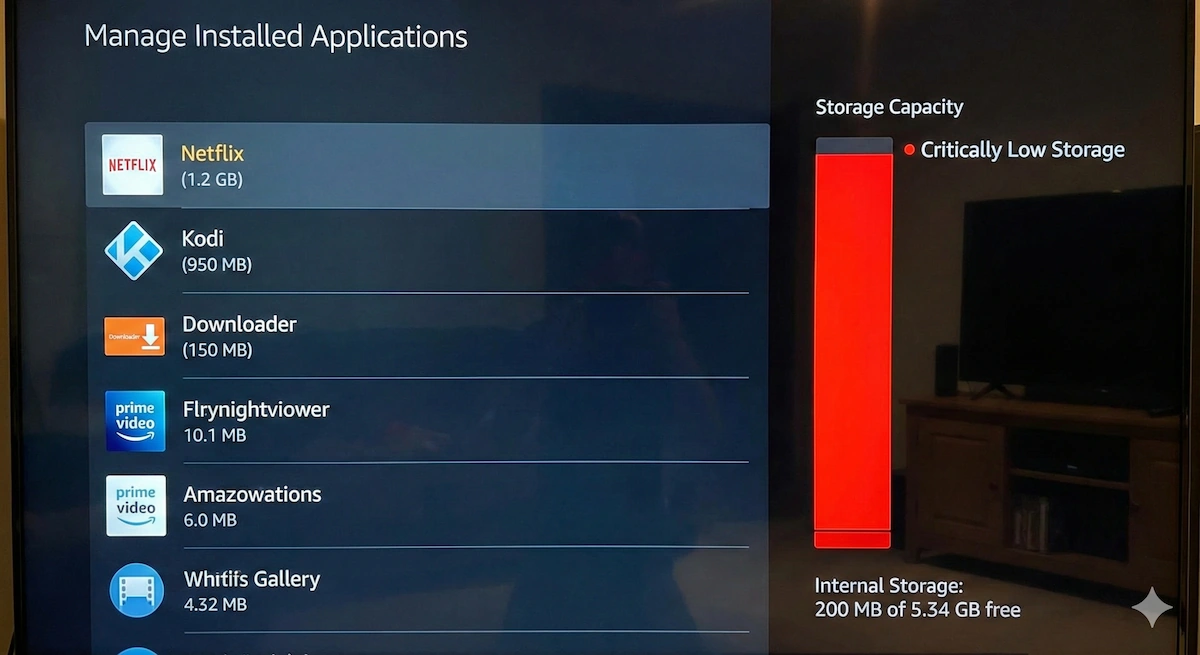
It starts as a small warning in the corner. Then it becomes a full-screen pop-up that won’t go away:
“Critically Low Storage” You are running out of space. Please uninstall apps to continue.
It usually appears just when you are trying to download a system update or a new streaming service. The natural reaction is to start deleting apps you use, like Spotify or Plex.
Stop. You probably don’t need to delete your favorite apps.
Your Fire Stick is likely full of “invisible junk”—installation files, old screensaver photos, and cache bloat—that you can safely wipe to reclaim gigabytes of space.
Here is how to deep clean your Fire Stick in 5 minutes.
1. The “Downloader” Trap (The #1 Culprit)
If you have ever “sideloaded” an app (like Cinema HD or Kodi) using the Downloader app, you have likely left a massive mess behind.
When you download an app, it saves an “APK” file (the installer). Once you install the app, that APK file is useless, but it sits there taking up 100MB+ of space. If you have installed 5 apps, that’s half a gigabyte wasted.
The Fix:
- Open the Downloader app.
- Click Files on the left menu.
- Do you see a list of files ending in
.apk? - Delete them all. (Don’t worry, this does not delete the app from your TV; it only deletes the installer box).
2. The Screensaver Cache (The Silent Storage Hog)
Amazon’s beautiful “High Quality” screensaver photos are stunning, but they are also huge. The Fire Stick downloads dozens of these high-resolution images and stores them on your tiny hard drive.
The Fix:
- Go to Settings > Applications.
- Select Manage Installed Applications.
- Scroll down to Amazon Photos (or “Screensaver”).
- Click Clear Cache (and even Clear Data).
Pro Tip: To stop this from filling up again, go to Settings > Display & Sounds > Screensaver and turn “Slide Speed” to “Slow” or disable the screensaver entirely.
3. Wipe the “Cache” (Not the Data)
Streaming apps like Netflix and Disney+ store “thumbnails” of movie posters so they load faster next time. Over a year, Netflix alone can hoard 500MB of these pictures.
You can delete them without logging yourself out.
- Go to Settings > Applications > Manage Installed Applications.
- Sort by App Size (this puts the heavy ones at the top).
- Click on the top app (usually Kodi or Netflix).
- Important: Click Clear Cache. (Do NOT click “Clear Data”—that will wipe your login details and settings).
Repeat this for your top 5 apps. You will be amazed at how much space magically reappears.
4. Uninstall the “Bloatware”
Amazon pre-installs apps you might never use, like “Amazon Kids,” “Amazon Music,” or random games. While you can’t uninstall the core system apps, you can uninstall the ones meant for users.
- Go to the Manage Installed Applications list again.
- Scroll through every single app.
- Ask yourself: “Have I opened this in the last 6 months?”
- If the answer is no, Uninstall it.
Common easy targets: The “IMDb TV” app (now Freevee) often duplicates content you can get elsewhere, and random “News” apps.
5. The Hardware Hack: Add Infinite Storage (For under £10)
If you have done all the above and you still don’t have enough space (maybe you have a huge Kodi library or Retro Games), you have hit the physical limit of the device.
But you don’t need to buy a new Fire Stick. You just need an OTG Cable.
This is a tiny £8 cable that splits the power port, allowing you to plug in a standard USB Memory Stick. You can then move your apps onto the USB stick, giving you virtually unlimited storage.
What you need:
- OTG Cable (Micro USB): 👉 Check Price on Amazon
- USB 3.0 Flash Drive (32GB is plenty): 👉 Check Price on Amazon
Once you plug it in, the Fire Stick will ask to format the drive. Select “Format as Internal Storage,” and suddenly your 8GB stick becomes a 40GB stick.