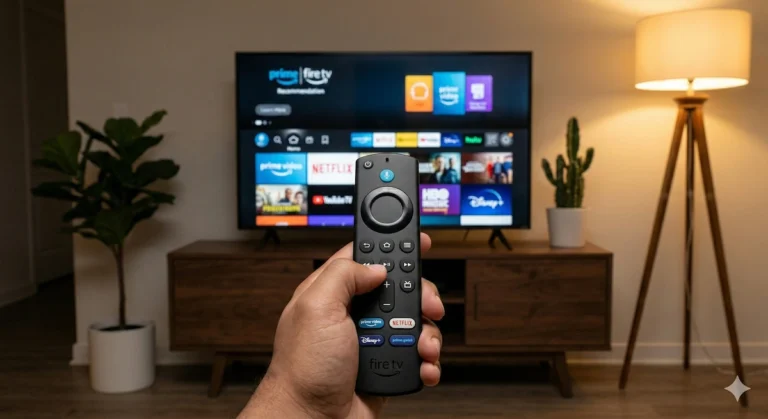
Stop Fire Stick Buffering Instantly: 5 Proven Fixes for 2026
Last Updated: March 2026
We have all been there. You are watching a tense thriller, the detective is just about to reveal the killer, and suddenly… the screen freezes. The little circle spins. You are officially buffering.
Constant pausing, low-resolution fuzzy pictures, and audio cutting out are the biggest complaints among Amazon Fire Stick owners. But before you blame your broadband provider and spend an hour on hold with customer service, the issue is almost always local to the stick itself.
Streaming 4K video requires a massive, uninterrupted flow of data. If there is even a tiny bottleneck between your internet router and your TV, the Fire Stick will choke.
Here is exactly how to clear those bottlenecks and get your smooth, crystal-clear picture back.
1. Switch to the 5GHz Wi-Fi Band (The Quickest Win)
Most modern broadband routers broadcast two different Wi-Fi signals: 2.4GHz and 5GHz.
Think of 2.4GHz as a country lane: it goes really far, but it’s slow and easily congested by other devices like baby monitors, microwaves, and your neighbor’s Wi-Fi. The 5GHz band is like a superhighway: it doesn’t reach as far, but it is incredibly fast and perfect for streaming 4K video.
The Fix:
- Go to your Fire Stick Settings > Network.
- Look at your list of Wi-Fi networks. If your router splits them, you might see your network name with a “5G” at the end (e.g., SkyRouter-5G).
- Connect to the 5G network instead of the standard one.
2. The HDMI Extender Trick (Unblock Your Signal)
If your Fire Stick is plugged directly into the back of your TV, it is sitting behind a massive wall of metal, glass, and electrical interference. This physically blocks the Wi-Fi signal from reaching the tiny antenna inside the stick.
The Fix: Find the short, flexible HDMI extender cable that was included in the original Amazon box. Plug your Fire Stick into the extender, and then plug the extender into the TV. This allows the stick to peek out from behind the TV, drastically improving its line of sight to your router.
3. Clear Your App Cache (The Software Fix)
Every time you open an app like Netflix, YouTube, or BBC iPlayer, it saves temporary data (cache) to help it load faster next time. Over time, this cache builds up and chokes the Fire Stick’s limited internal memory, causing the whole system to slow down and buffer.
The Fix:
- Go to Settings > Applications > Manage Installed Applications.
- Scroll down to the app you use the most (e.g., Netflix).
- Click on it, then scroll down and select Clear Cache. (Do NOT click ‘Clear Data’, or you will have to log in again).
- Repeat this for your 3 or 4 most used apps.
4. Hardwire It: The Ultimate Buffering Cure
If your Wi-Fi is naturally patchy, or if your TV is a long way from your broadband router, no amount of tweaking will fix a weak wireless signal. The absolute best, 100% guaranteed way to stop buffering is to bypass Wi-Fi entirely.
Amazon makes an official, inexpensive Ethernet Adapter specifically for the Fire Stick. It plugs directly into the side of the stick and allows you to run a standard internet cable right to your router.
This provides a permanent, rock-solid data connection that will instantly cure 4K buffering. 👉 View the Official Amazon Fire TV Ethernet Adapter here
5. Upgrade Your Home Network (The Nuclear Option)
If you can’t run a cable across your living room, and your router is on the opposite side of the house from your TV, the Fire Stick is simply starving for a signal.
In 2026, the best solution for large homes or houses with thick brick walls is a Mesh Wi-Fi System. These replace your single router with multiple small “nodes” placed around the house, blanketing your entire home in a flawless, high-speed signal. 👉 Check out my top recommended Mesh Wi-Fi Systems for Streaming here
Now, I’d love to hear from you: Buffering is incredibly frustrating, but usually highly fixable. Which of these 5 steps finally cured the spinning circle for you? Did simply switching to the 5GHz network do the trick, or did you have to bite the bullet and buy the Ethernet adapter? Drop a comment below and let me know!