Why Is My Fire Stick Running Slow? (5 Ways to Speed It Up in 2026)
Last Updated: February 2026
You click “Down” on the remote, and three seconds later, the cursor moves. You try to open ITVX, and it spins for a minute before crashing.
A sluggish Fire Stick is the most common complaint we hear from users. The good news is that your device probably isn’t broken—it’s just cluttered.
Like a laptop or phone, Fire Sticks gather “digital dust” over time—temporary files, background tracking, and unused apps that clog up the processor.
Here is your 5-step maintenance routine to make your Fire Stick feel brand new again.
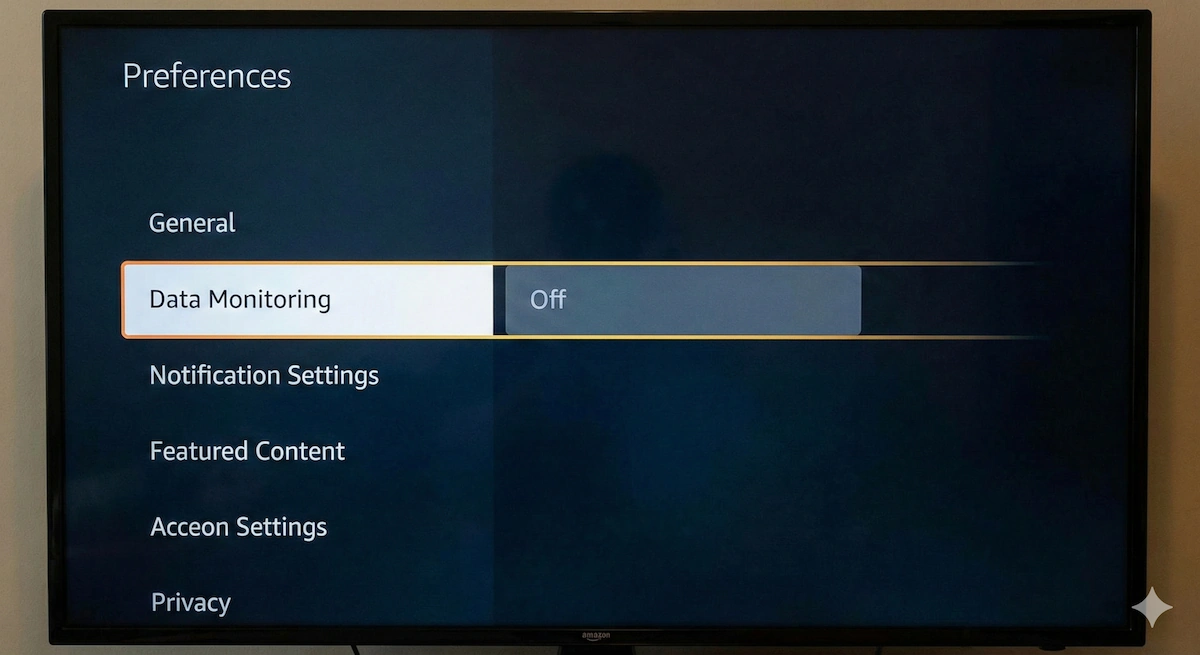
1. Turn Off “Data Monitoring” (The Hidden Resource Hog)
Most people don’t know that, by default, your Fire Stick is constantly tracking what you do to send data back to Amazon. This background process eats up processing power.
Turning it off doesn’t stop your TV from working; it just stops the spying and frees up the CPU.
- Go to Settings (the Cog icon).
- Select Preferences.
- Select Privacy Settings.
- Turn OFF “Device Usage Data” and “Collect App Usage Data.”
- Go back one menu and select Data Monitoring.
- Turn OFF “Data Monitoring.”
Result: You have just stopped a heavy background process from running 24/7.
2. Stop the “Autoplay” Videos
You know when you hover over a movie on the home screen and it starts blasting a trailer at you? That requires your Fire Stick to constantly buffer video in the background as you scroll. It makes the menu feel jerky and slow.
Let’s kill it.
- Go to Settings > Preferences.
- Select Featured Content.
- Turn OFF “Allow Video Autoplay.”
- Turn OFF “Allow Audio Autoplay.”
Result: The home screen will now be silent and static, making navigation much snappier.
3. The “Cache Clear” Routine
Every app you use stores temporary files (album art, search history, thumbnails). Over a year, this can build up to hundreds of megabytes.
Warning: Do not select “Clear Data” (this logs you out). You only want “Clear Cache.”
- Go to Settings > Applications.
- Select Manage Installed Applications.
- Look for the “heavy” apps: Kodi, YouTube, Netflix, and the Screensaver.
- Click each one and select “Clear Cache.”
Pro Tip: Look at the “Internal Space” bar on the right side of the screen. If you have less than 500MB free, your stick will struggle. Uninstall any games or apps you haven’t used in 6 months.
4. Disable “Notifications”
Apps love to interrupt you with “Watch this now!” pop-ups. These require a background service to be constantly listening.
- Go to Settings > Preferences.
- Select Notification Settings.
- Select App Notifications.
- Turn OFF notifications for every single app (especially the Appstore and Amazon Photos).
5. The “Nuclear Option” (Factory Reset)
If you have done all the above and it is still painfully slow, your operating system might have deep-level corruption. The only fix is to wipe it clean.
Note: This deletes everything. You will have to redownload your apps and sign into Wi-Fi again.
- Go to Settings > My Fire TV.
- Select Reset to Factory Defaults.
- Wait 10 minutes for it to reboot.
This returns the software to the state it was in when you first took it out of the box.
The Hard Truth: Is Your Stick Just Too Old?
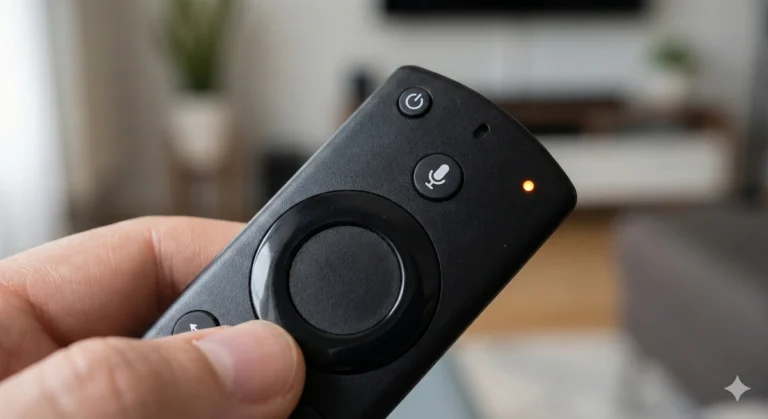
If you have a 1st or 2nd Generation Fire Stick (the ones without volume buttons on the remote), no amount of tweaking will make it fast in 2026. Modern apps like Disney+ and iPlayer are simply too heavy for those old processors.
If you have reset your device and it is still lagging, it is time to retire it.
The Upgrade Path: The Fire TV Stick 4K has a processor that is 30% faster than the standard “Lite” version. It is the sweet spot for performance vs. price.
👉Check Price of Fire TV Stick 4K on Amazon
Fed up with Fire TV ads slowing you down? See why many people are switching to Roku in our Fire Stick vs Roku Comparison.