Fire Stick Buffering? The Secret “Network Channel” Fix (2026 Guide)
Last Updated: February 2026
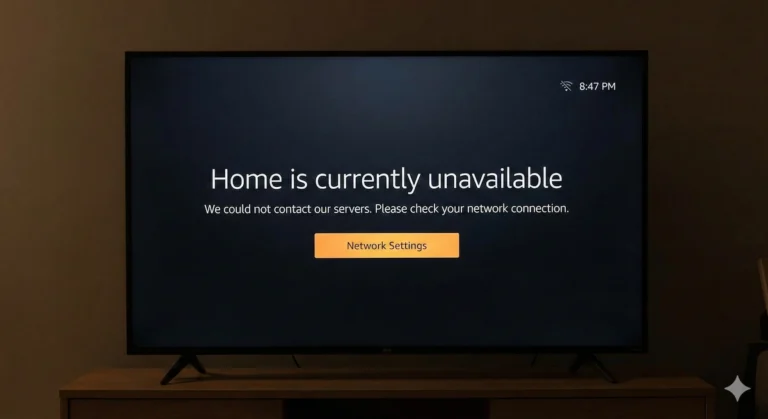
You have 100Mbps fibre broadband. Your phone is fast. Your laptop is fast. But for some reason, your Fire Stick keeps showing that spinning circle of doom right in the middle of a movie.
You have restarted the router. You have cleared the cache. Nothing works.
The problem likely isn’t your internet speed—it’s Traffic Congestion.
Think of your Wi-Fi like a motorway. If every house on your street is using the same “lane” (Channel), everything grinds to a halt. Because Fire Sticks are small and often tucked behind TVs, they are very sensitive to this interference.
Here is how to “switch lanes” and give your Fire Stick its own private fast track.
1. Check Your “Signal Strength” (The Secret Menu)
Before we change anything, let’s see what the Fire Stick actually thinks of your Wi-Fi.
- Go to Settings > Network.
- Highlight your Wi-Fi name but don’t click it.
- Look at the right side of the screen. It will say Signal Strength.
- If it says “Fair” or “Poor,” you have a congestion problem. If it says “Very Good,” but you still buffer, you definitely have a “Channel” problem.
2. Change Your Wi-Fi Channel (The Pro Fix)
Most UK routers (BT, Sky, Virgin) are set to “Auto” channel. This sounds smart, but they often pile every device onto the same frequency as your neighbour’s microwave or baby monitor.
The Fix: You need to log into your Router settings (usually by typing 192.168.0.1 into a phone browser) and manually set your 5GHz channel to one of these “Clear Lanes”: 36, 40, 44, or 48.
Why these numbers? Fire Sticks sometimes struggle to “see” the higher channels (above 100). By forcing your router to use a lower, cleaner channel, the Fire Stick can maintain a rock-solid connection that doesn’t drop when your neighbour starts their PlayStation.
3. Use the “HDMI Extender” (It’s Not Just a Cable)
We talk about this a lot, but for Wi-Fi, it is non-negotiable.
The back of your TV is a wall of metal and electromagnetic noise. If the Fire Stick is plugged directly into the port, the TV itself is literally blocking the Wi-Fi waves.
Using that 5cm HDMI Extender pulls the stick’s internal antenna out from behind the “shield” of the TV. It can improve your connection speed by up to 40% instantly.
4. The “USB Power” Warning
Are you still powering your Fire Stick from the TV’s USB port?
When a Fire Stick tries to stream high-definition video, the Wi-Fi chip has to work extremely hard. If it isn’t getting enough “juice” from the TV port, the Wi-Fi chip is the first thing to throttle down.
The Fix: Use the original wall plug. A well-powered Fire Stick is a fast Fire Stick.
5. Switch to a “Wired” Connection
If you live in a flat with 20 other Wi-Fi signals nearby, “clean channels” might not exist. The air is simply too crowded.
In this case, stop fighting with Wi-Fi.
For the price of a couple of coffees, you can get an Ethernet Adapter. This lets you run a physical cable from your router to the stick. It is the only 100% guarantee that buffering will never happen again.