Fire Stick Black Screen? 7 Ways to Fix the “Black Screen of Death”
Last Updated: February 2026
You turn on your TV, you hear the familiar “click” of the Fire Stick remote, but the screen stays as black as a piece of coal.
This is the dreaded “Black Screen of Death.” It’s terrifying because, unlike a “Green Screen” or a “Buffering” icon, a black screen gives you zero feedback. You don’t know if the Stick is off, broken, or simply stuck.
In 2026, with newer 4K and 8K TVs, the issue is almost always a “handshake” error where the TV and Stick can’t agree on a resolution.
Here is your emergency checklist to bring your screen back to life.
1. The “Resolution Cycle” Remote Trick
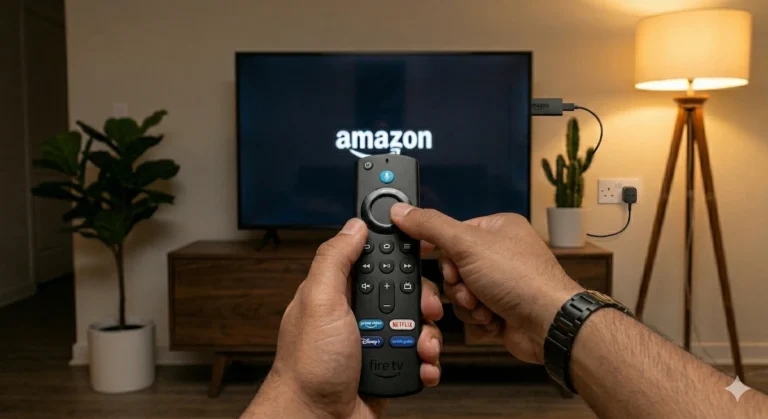
If your Stick is on but the screen is black, it might be trying to output a resolution your TV doesn’t support (like 4K on a 1080p TV). You can force it to cycle through resolutions using only the remote.
- Press and hold UP (on the ring) and REWIND at the same time.
- Hold for 10 seconds.
- The Stick will now cycle through every available resolution, stopping at each one for 10 seconds.
- When you see a picture appear on your screen, click “Use this resolution.”
2. Check the “HDMI-CEC” Conflict
Modern TVs have a feature called HDMI-CEC (called Anynet+ on Samsung or Simplink on LG). It allows your Fire Stick remote to turn on your TV. Sometimes, this “talkback” crashes, leaving the screen black.
The Fix: 1. Unplug the Fire Stick from the HDMI port. 2. Turn off your TV at the wall. 3. Wait 60 seconds. 4. Plug the TV back in, then plug the Fire Stick back into the HDMI port.
This forces the HDMI-CEC “handshake” to restart from scratch.
3. The “Power Starvation” Check
Are you still using the USB port on the back of your TV? As Fire Sticks get older, their internal components require more consistent power to “wake up” the video chip.
The Fix: Use the original Amazon power brick in a wall socket. If the LED on the side of your Fire Stick (if it has one) is flickering or off, it isn’t getting enough juice to send a video signal.
4. The “Deep Sleep” Glitch
Fire Sticks don’t actually “turn off”; they go into a Low Power Sleep Mode. Occasionally, they fall into a “Deep Sleep” and refuse to wake up when you press a button.
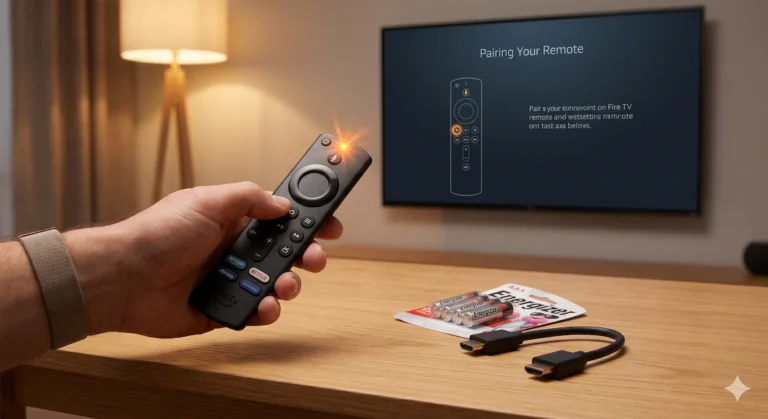
The Fix: Press and hold the Select (center) and Play/Pause buttons simultaneously for 10 seconds. This forces a hardware restart. If the “fireTV” logo appears, you’ve successfully woken it up.
5. Is your HDMI Extender faulty?
That little 5cm cable we always recommend? It can actually fail. Over time, the internal wires can fray from the heat of the TV.
The Test: Remove the extender and plug the Fire Stick directly into the TV. If the picture returns, your extender was the culprit.
👉 Check Price of Heavy Duty HDMI Extenders on Amazon
6. The “HDCP” Copy Protection Error
If you see a black screen only when you try to play a movie (but the menus work fine), this is an HDCP error. Your TV thinks you are trying to “pirate” the movie because it can’t verify the secure connection.
The Fix: 1. Go to Settings > Display & Sounds > Display. 2. Find Dynamic Range Settings. 3. Switch it from “Always HDR” to “Adaptive.”
7. The Hardware “Stress Test”
If you’ve tried all the above and the screen is still black, try this:
- Plug the Fire Stick into a different HDMI port.
- Try the Fire Stick on a different TV in the house.
If it works on a different TV, your original TV’s HDMI port might be set to the wrong “HDMI Mode” (e.g., HDMI 2.1 vs 1.4). Check your TV’s internal settings for “HDMI Ultra HD Deep Colour” and try toggling it off.