Fire Stick Remote Not Working? try These 5 Fixes Before Buying a New One (2026)
Last Updated: March 2026
It’s the universal gesture of frustration: pointing the remote at the TV, clicking buttons frantically, and… nothing happens.
You take the batteries out. You spin them around. You put them back in. Still nothing.
Before you throw your remote across the room (please don’t do this!) or order a replacement on Amazon, you need to know that Fire Stick remotes rarely “break.” They just get confused. Or as in my case sometimes, my children have removed the batteries from the remote control and then replaced them in the wrong order!
Unlike old TV remotes that used simple infrared light, Fire TV remotes use Bluetooth technology to talk to the stick. This is better because you don’t need a direct line of sight, but it also means the connection can sometimes drop.
Here is the step-by-step guide to bringing your dead remote back to life.
1. The Battery “Hard Reset” (Don’t Just Swap Them)
Yes, changing the batteries is obvious. But if your remote has crashed, simply swapping them quickly might not work. The internal capacitor needs to drain.
- Take both batteries out of the remote.
- Wait for 60 full seconds. (This is crucial).
- While the batteries are out, press every button on the remote a few times to drain any residual power.
- Put fresh (non-rechargeable) alkaline batteries in.
- The remote should automatically reconnect within 10 seconds.
2. Force a Re-Pairing Sequence
Sometimes the Fire Stick just “forgets” the remote. You need to force it to start listening for a new connection.
- Make sure you are within 3 meters (10 feet) of the Fire Stick.
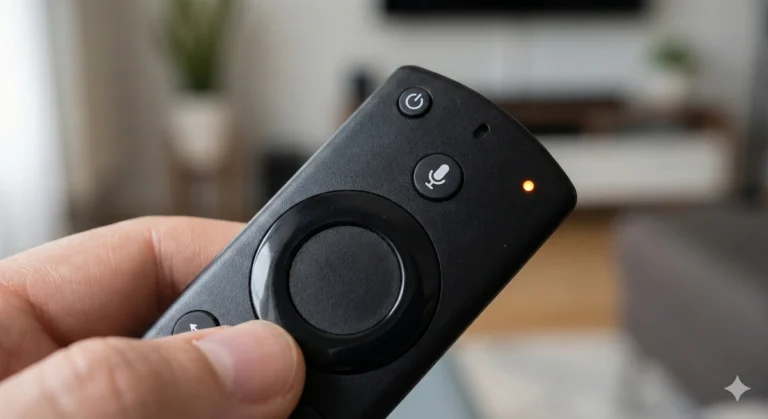
- Press and HOLD the Home Button (the house icon).
- Keep holding it for at least 10-15 seconds.
The light on the remote (if you have a newer model) should start flashing rapidly. Watch your TV screen; a message saying “New Remote Connected” should appear in the corner.
3. The “Secret” Remote Factory Reset (The nuclear Option)
If the standard re-pairing above didn’t work, your remote’s internal software might be corrupted. Most people don’t know this, but you can factory reset just the remote using a specific button combination.
Note: This works for most modern Fire TV remotes (with volume buttons).
- Unplug your Fire Stick from the power so the TV screen goes off.
- On the remote, press and HOLD these three buttons at the same time for 12 seconds:
- Left (on the remote ring)
- Menu (the three lines)
- Back (the arrow)
- Release the buttons and wait 5 seconds.
- Take the batteries out of the remote.
- Plug your Fire Stick power back in and wait for the Home screen to appear on your TV.
- Put the batteries back into the remote.
- Press the Home button. The remote should now pair like it’s brand new.
4. Check for “Bluetooth Jammers”
Because the remote uses Bluetooth, it operates on the same 2.4GHz frequency as many other household devices. If your Fire Stick is hidden behind the TV, and there is a lot of interference, the signal won’t get through.
Common culprits that block remotes:
- Microwave ovens running nearby.
- Baby monitors.
- Cheap unshielded HDMI cables touching the Fire Stick.
- Other Bluetooth devices (speakers, headphones) sitting right next to the TV.
Try moving any obvious wireless devices away from the TV area and see if the remote becomes responsive again.
5. The Emergency Backup: Use Your Phone
If you have tried all the above and the remote is truly dead, you don’t have to stop watching TV while you wait for a replacement.
Amazon provides a free, official remote app that works perfectly over Wi-Fi.
- Download the “Amazon Fire TV” app from the Apple App Store or Google Play Store.
- Make sure your phone is on the same Wi-Fi network as your Fire Stick.
- Open the app; it should find your Fire Stick automatically.
- Enter the 4-digit code that appears on your TV screen.
You can now use your phone screen as a trackpad and keyboard to control your TV.
If all the above steps fail, and you are sure that you Amazon Fire TV remote control is definitely dead then I can recommend the below places to order a replacement one dependent on the type of Amazon Fire TV stick you may have
| Amazon Fire TV remote control (Official replacement) | Check best prices here | Cost at time of writing £29.99 |
| Amazon Fire TV remote control (Unofficial replacment) | Check best prices here | Cost at time of writing £6.95 |
I would advise that you check carefully prior to ordering a replacement remote control for you Amazon Fire Stick TV device that is a compatabile owing to the fact that, at the time of writing this article there are many models available from 1st and 2nd generation Amazon TV Fire sticks, to the 3rd generation Amazon 4K Fire Sticks, and most recently the 4K Max models, and this will only continue to grow at pace no doubt, so just make sure it’ll work with your device beofore making a puchase.
“There is nothing more frustrating than a piece of tech that simply refuses to respond. I really hope one of these fixes saved you from having to buy a brand-new remote today!
Now, I want to hear from you: Did the ‘secret’ 3-button factory reset actually bring your remote back to life, or did you end up having to use the emergency phone app? Let me know which of these 5 steps finally worked for you in the comments below—your experience genuinely helps other readers who are stuck on the exact same problem!”