Fire Stick Says “Home is Currently Unavailable”? Here Is the Fix (2026)
By [Your Name] | Last Updated: February 2026
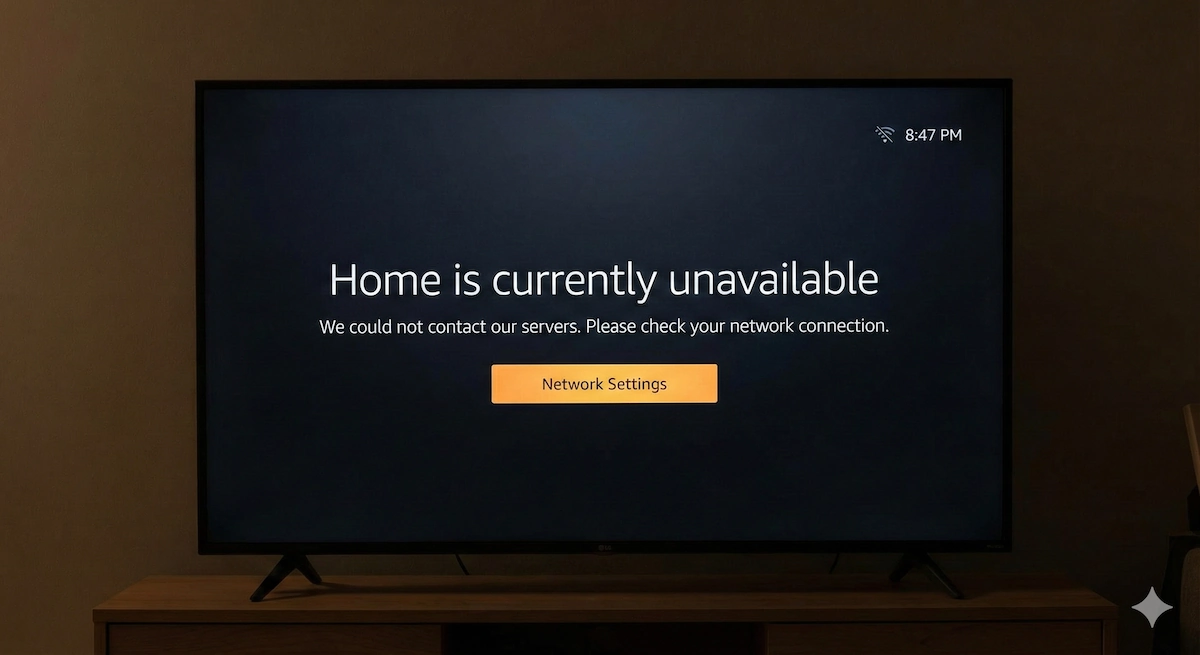
You turn on your TV, ready to watch the next episode, and instead of your usual row of apps, you see a blank screen with a sad little message:
“Home is Currently Unavailable” We could not contact our servers. Please check your network connection.
You check your phone. The Wi-Fi is working fine. You check your laptop. That works too. So why is your Fire Stick acting like the internet has ceased to exist?
This is one of the most annoying errors in the Fire TV world because it often has nothing to do with your actual internet speed. It is usually a “confusion” between the device and your router.
Here is how to get your Home screen back in 5 minutes.
1. The “Real” Router Restart (Don’t Skip This!)
I know, I know. “Turn it off and on again” is boring advice. But for this specific error, it fixes it 80% of the time.
However, you must do it in the right order to force a new “IP Address” assignment.
- Unplug your Fire Stick from the power.
- Unplug your Internet Router from the wall.
- Wait 60 seconds.
- Plug the Router back in first. Wait until all the lights are solid green (this can take 2-3 minutes).
- Only then plug your Fire Stick back in.
By making the Router start first, it clears out the “stale” connection that was blocking your Fire Stick.
2. “Forget” the Network
Sometimes, the Fire Stick holds onto an old, corrupted password file. We need to force it to ask for the password again.
- Go to Settings > Network.
- Highlight your Wi-Fi name.
- Press the Menu button (three lines) on your remote.
- Press Select to “Forget this Network.”
- Now, click on it again and re-enter your Wi-Fi password.
Pro Tip: If you have a “5GHz” and a “2.4GHz” network, try connecting to the “2.4GHz” one. It is slower, but the signal travels through walls much better, which stops this error from coming back.
3. The “Signal Block” (Are You Hiding the Stick?)
We see this all the time. You have plugged the Fire Stick directly into the back of the TV, and maybe the TV is mounted flush against a brick wall.
The Problem: The TV’s own metal internal panel acts as a shield, blocking the Wi-Fi signal from reaching the stick. Your phone works because it’s in your hand; the stick fails because it is suffocating behind the screen.
The Fix: Use the HDMI Extender cable that came in the box. It moves the stick just 5cm away from the back of the TV, which is often enough to get the signal back.
4. The Permanent Fix: Use an Ethernet Adapter
If you live in a house with thick walls, or your router is in another room, Wi-Fi will always be unreliable.
The best upgrade you can buy for under £15 is the Amazon Ethernet Adapter.
It is a small dongle that lets you plug an internet cable directly into your Fire Stick.
- No more buffering.
- No more “Home Unavailable” errors.
- Faster menu loading.
It is plug-and-play. You don’t need to configure anything. You just plug it in, and the Fire Stick switches to “Wired Mode” instantly.
👉 Check Price of Amazon Ethernet Adapter
5. The “Secret” Account Reset
If your internet is definitely working (e.g., you can watch Netflix but the Home Screen still says “Unavailable”), your Amazon account data might be corrupted on the device.
You can fix this without a factory reset.
- Go to Settings > Account & Profile Settings.
- Select Amazon Account.
- Select Deregister.
- Confirm it.
The Fire Stick will restart and ask you to sign in again (using your email/phone). This forces the device to download a fresh version of your profile from the Amazon servers, which usually clears the “Unavailable” bug immediately.