The Ultimate Amazon Fire Stick Setup Guide for UK Users (2026 Edition)
Last Updated: February 2026
So, you’ve just unboxed a brand-new Fire Stick. You’re seconds away from binging your favorite box sets, but before you dive in, there is a problem.
Out of the box, a Fire Stick is a bit of a “noisy” neighbour. It tracks your viewing habits, blasts loud trailers at you, and clutters your home screen with apps you’ll never use.
Over the years, I have set up dozens of these devices for my own use, but also many family members and friend and one thing I’ve learned is that taking 10 minutes to “optimise” the settings now will save you hours of frustration later.
When I purchased my first ever Amazon Fire Stick, I was impressed by the home screen layout, it’s really striking, intuitive and provides a very immersive experience when navigating through the menu and if you have just purchased your first Fire Stick, regardless of model I’m sure you will not be dissapointed. That said, when setting up my first ever Fire Stick I did get annoyed, and quite quickly by the constant trailers being thrown at me (could be just me, but this was soo anoying)! Anyway, I spent a bit of time thereafter trawling through the menus and researching how best to fix this to reduce the annoyance…..
So following this, here is my definitive 2026 guide to setting up a Fire Stick the right way.
1. The Power Rule: Stop “TV USB” Starvation
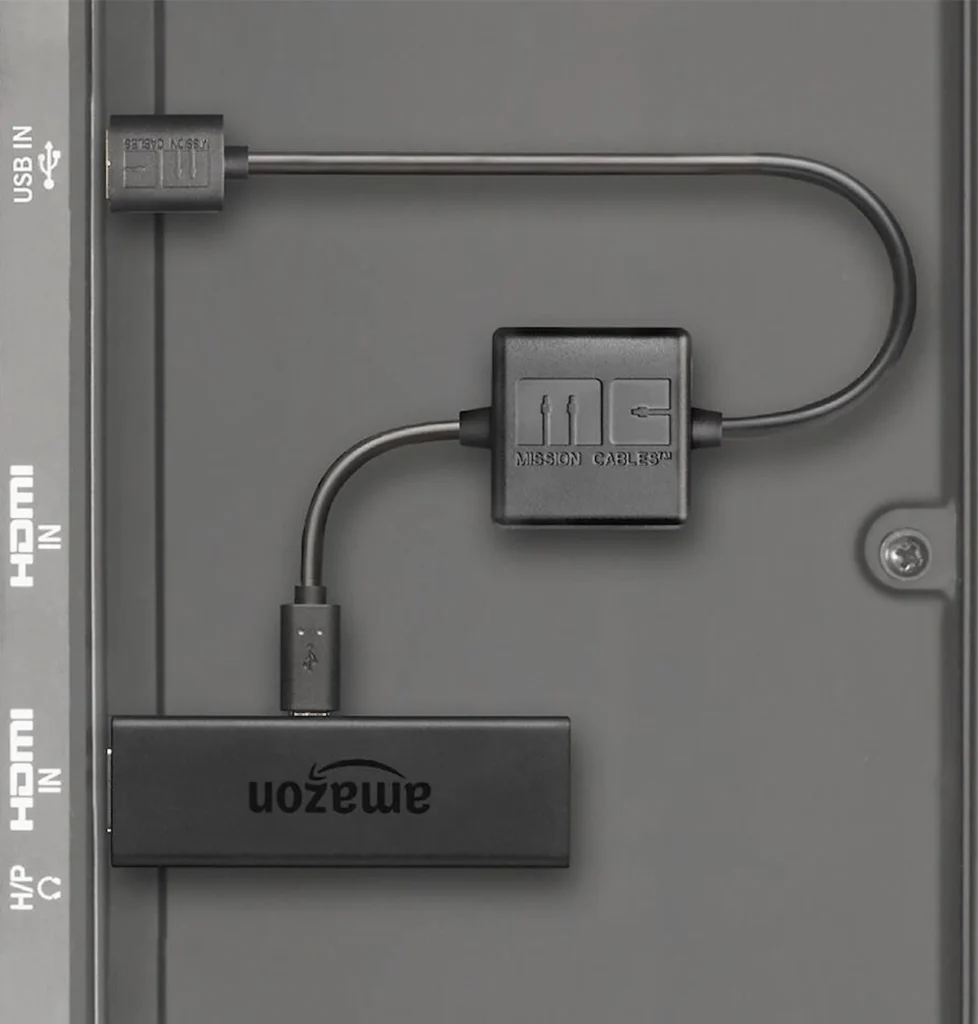
The first thing most people do is plug the USB power cable into the back of their TV. Don’t do this.
In my testing with the latest 4K Max models, I found that using the TV’s USB port (which usually outputs only 0.5A) causes the Wi-Fi to drop out and the device to lag during high-intensity 4K streaming.
- The Fix: Use the official power “brick” and plug it into a UK wall socket. It ensures the processor has the “juice” it needs for 4K HDR10+ playback. If you must use your TV USB port, a great alternative is to use a high quality Mission Power Cable instead.
2. Privacy Lockdown (Updated for 2026)
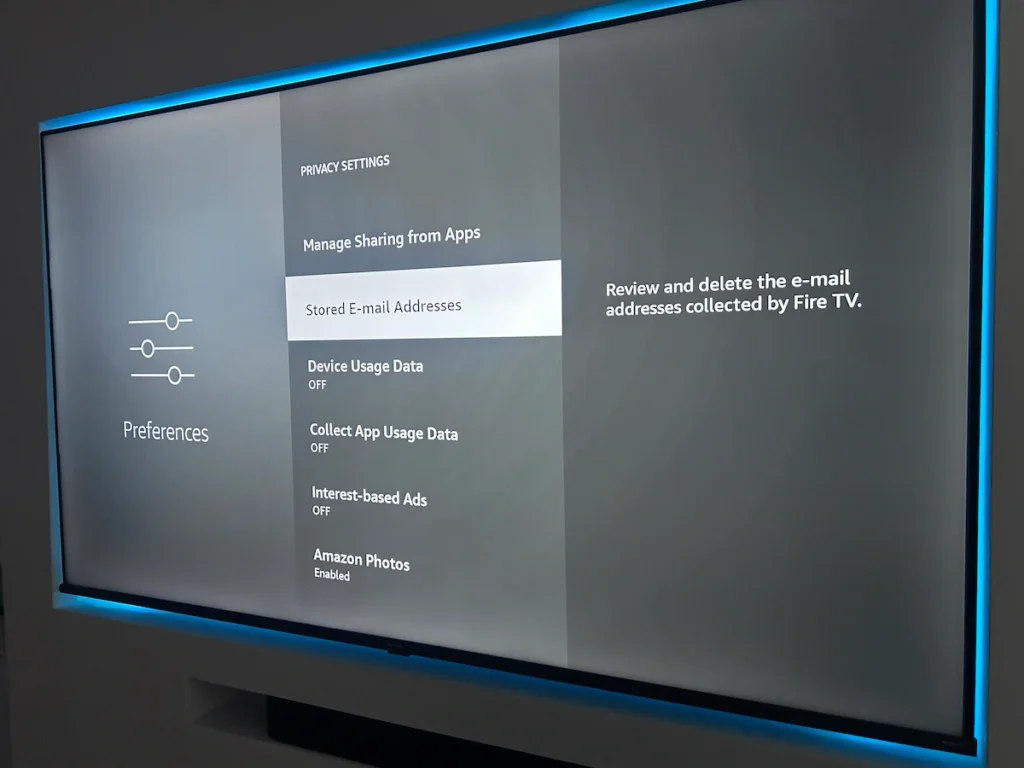
Amazon recently pushed a silent update that re-enabled several tracking features. To keep your data private and speed up your device, turn these OFF immediately:
- Settings > Preferences > Privacy Settings:
- Turn OFF Device Usage Data.
- Turn OFF Collect App Usage Data.
- Turn OFF Interest-based Ads.
- Settings > Preferences > Data Monitoring:
- Turn this OFF. Unless you are on a metered mobile hotspot, you don’t need the Fire Stick constantly measuring your data in the background.
3. Silence the “Home Screen Noise”
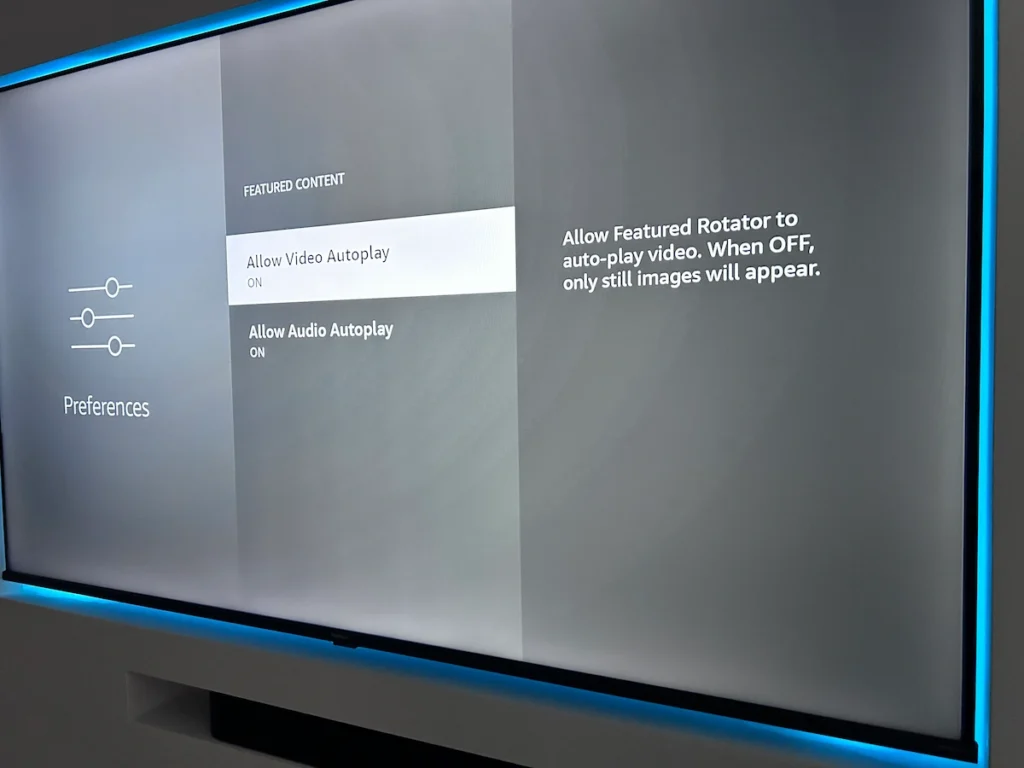
Nothing is more annoying than turning on your TV at 11 PM and having a loud movie trailer start playing automatically & you’ll not be overly popular should this wake anyone up who enjoys getting their beauty sleep earlier than what you do!
My Recommended Clutter-Free Settings:
- Settings > Preferences > Featured Content:
- Turn OFF Allow Video Autoplay.
- Turn OFF Allow Audio Autoplay.
- Organise Your Apps: * Hold the Home button and select Apps.
- Move your “Big 5” (BBC iPlayer, ITVX, etc.) to the top row. These are the only apps that will stay on your “pinned” bar.
4. Essential UK App Checklist
For a UK user, other than the big players for On Demand TV streaming content, such as BBC iPlayer, ITVX, Channel 4, and My5 these are the “Must-Haves” that provide the best value without costing a penny in subscriptions:
- U (Formerly UKTV Play): Essential for Dave, Drama, and Yesterday box sets.
- STV Player: Even if you aren’t in Scotland, this has a brilliant range of “hidden gem” dramas.
- Pluto TV: The best way to get “Live” channels like CSI or Hell’s Kitchen for free.
- Downloader: The gateway app you’ll need if you ever want to install third-party tools or browsers.
5. Pro Tip: The “HDMI-CEC” Magic
Want to hide your bulky TV remote in a drawer?
Go to Settings > Display & Sounds > HDMI CEC Device Control and turn it ON. This allows your Fire Stick remote to control your TV’s volume and power perfectly. It makes the whole experience feel like a “Smart TV” rather than a stick plugged into the back.
Summary Checklist for New Users
| Task | Why? |
| Use Wall Power | Prevents 4K buffering and crashes. |
| Disable Tracking | Protects privacy and speeds up the CPU. |
| Turn off Autoplay | Makes the Home Screen quiet and fast. |
| Sync Live TV | Puts BBC/ITV channels into one TV Guide. |
FAQs
Q: Do I need a VPN for my Fire Stick in the UK?
A: If you are only using official apps like BBC iPlayer and Netflix, no. However, if you travel abroad and want to watch UK TV, or if you use third-party apps, a VPN is highly recommended for privacy. You can read more about VPN’s, what they are, and some of the benefits of using a VPN with your Amazon Fire Stick within a previous arcticle we wrote about Why Is My Fire Stick Buffering? (And How to Stop Your ISP Throttle)
Disclaimer: Whilst watching UK On Demand TV services whilst abroad, such as BBC iPlayer isn’t ilegal, this a breach of their ‘terms of service’ as contect is often restricted to the UK due to certain licensing conditions. Any content streamed or downloaded via their services is intended for residents of the United Kingdom who pay their TV licence fee. OnDemand-TV.co.uk would always suggest checking the rules of UK TV service if you do intend access their apps whilst away in another country.
Q: Why is my Fire Stick remote not controlling my TV volume?
A: Go to Settings > Equipment Control > Manage Equipment and run the “TV Setup” again. It will “test” your TV’s infrared codes until it finds the right one.