Fire Stick No Sound? (Or Audio Out of Sync?) Here is the Fix
Last Updated: February 2026
There is nothing worse than settling down to watch a film, only to find the actors are moving their lips but no sound is coming out.
Or perhaps even more annoying: the sound is working, but it’s delayed by half a second, making the latest blockbuster look like a badly dubbed 1970s Kung Fu movie.
Whether your Fire Stick is totally silent or just out of time, the culprit is usually a setting called “Dolby Digital.”
Here is how to get your sound back in sync.
🔇 Part 1: No Sound At All?
Try these fixes if your TV is completely silent.
Fix #1: The “Dolby Clash” (Most Common Cause)
Modern Fire Sticks try to send high-quality “Dolby Digital Plus” surround sound to your TV automatically. The Problem: If your TV is older or you are using a cheap soundbar, it might not understand this complex signal. It panics and plays nothing at all.
The Fix: Force the Fire Stick to use “Basic” stereo sound.
- Go to Settings > Display & Sounds.
- Select Audio.
- Select Surround Sound.
- Change it from “Best Available” to “PCM” (or just “Stereo”).
PCM is the universal language of audio. Every TV in the world understands it. If this brings your sound back, leave it on this setting.
Fix #2: The Bluetooth Thief
Did you use Bluetooth headphones late at night last week? Sometimes, your Fire Stick thinks those headphones are still connected, so it is sending the audio to a pair of headphones sitting in a drawer instead of your TV speakers.
- Go to Settings > Controllers & Bluetooth Devices.
- Select Other Bluetooth Devices.
- If you see headphones listed as “Connected,” disconnect them.
🗣️ Part 2: Audio Out of Sync? (Lip Sync Issues)
Try these fixes if the sound happens before or after the actor’s lips move.
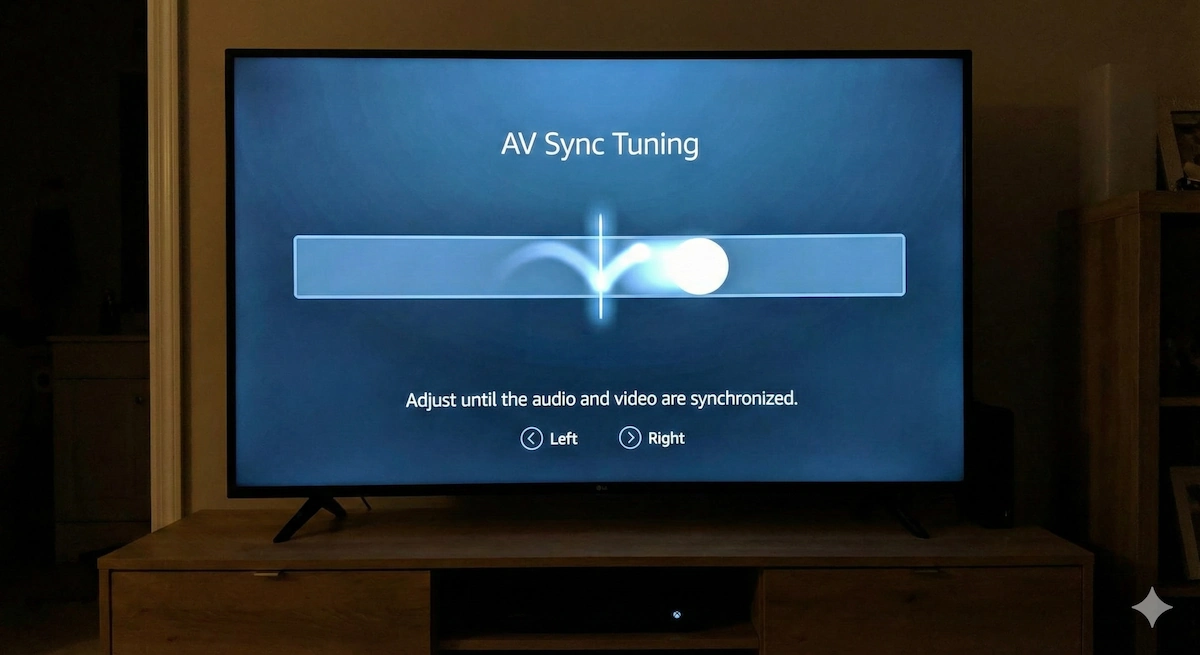
Fix #3: The Hidden “AV Sync” Slider
Amazon actually built a secret tool just to fix this, but most people don’t know it exists.
- Go to Settings > Display & Sounds.
- Select Audio.
- Select AV Sync Tuning.
You will see a bouncing ball and a flash.
- If the sound clicks before the flash: Press Right on your remote to delay the audio.
- If the sound clicks after the flash: Press Left to speed it up.
Keep tweaking it until the click and the flash happen at the exact same moment.
Sometimes audio lag is caused by a slow processor—check our guide on How to Speed Up Your Fire Stick
Fix #4: Turn Off “Volume Leveler”
There is a feature called “Volume Leveler” designed to stop adverts from being louder than the movie. However, this extra processing takes time (milliseconds), which can cause the audio to lag behind the video.
- Go to Settings > Display & Sounds.
- Select Audio > Advanced Audio.
- Turn OFF “Volume Leveler.”
- Turn OFF “Dialogue Enhancer.”
Test your video again. The lag often disappears instantly.
🔌 Fix #5: The “HDMI Handshake” Reset
If the audio suddenly cuts out after you pause a movie and come back, your TV’s HDMI port has gone to sleep.
You don’t need to restart the whole Fire Stick. Just force the TV to wake up the port:
- Grab your TV Remote (not the Fire Stick one).
- Switch the “Source” to normal TV (or a different HDMI).
- Wait 5 seconds.
- Switch back to the Fire Stick HDMI.
This forces a new “Digital Handshake,” which usually brings the sound back immediately.
🎧 Still Having Issues?
If you simply cannot get the sound to work on your TV speakers, or if your TV speakers are tinny and awful, there is a clever workaround: Bluetooth Pairing.
You can bypass your TV’s broken audio entirely by pairing a Bluetooth Speaker (like an Echo Dot or a JBL speaker) directly to the Fire Stick.
- Put your Speaker in “Pairing Mode.”
- On Fire TV, go to Settings > Controllers & Bluetooth Devices.
- Select Other Bluetooth Devices > Add Bluetooth Device.
This often gives you better sound quality than your TV anyway!