How to Turn Your Older TV into a Smart Internet TV (UK 2026 Guide)
Last Updated: March 2026
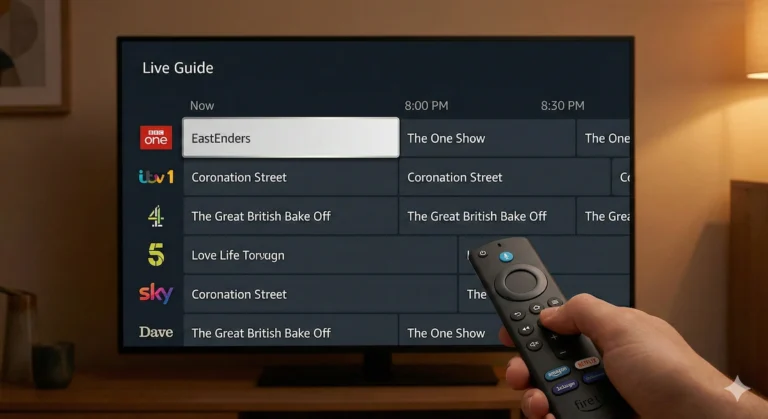
It is a common frustration: you have a flat-screen TV in your living room or bedroom. The picture quality is fantastic, the speakers work perfectly, but it’s completely “dumb.” It doesn’t connect to Wi-Fi, and it certainly doesn’t have apps like Netflix, Disney+, ITVX, or BBC iPlayer.
You might think your only option is to throw it away and spend hundreds of pounds on a brand-new Smart TV.
Don’t do that. Many friends of mine over the years have rushed out to purchase ‘Internet enabled Smart Televisions’ and yes, they are great to begin with but the reality is technology moves so fast these days and even some big name players in the TV world such as LG, Samsung & Sony, you’ll find that very often, and quite quickly on occasion that apps within these Smart TV’s begin to become problematic/laggy, and the device software updates slow down and sometimes ceases altogether.
What you are then left with is a very expensive television which doesn’t offer what it once did when new, leaving you feeling short changed and frustrated, but it doesn’t need to be this way!
If your TV has an HDMI port on the back (almost all TVs made in the last 15 years do), you can turn it into a lightning-fast internet TV for under £40. Here is my complete, jargon-free guide on exactly how to do it.
The Secret: “Plug-in” Streaming Sticks
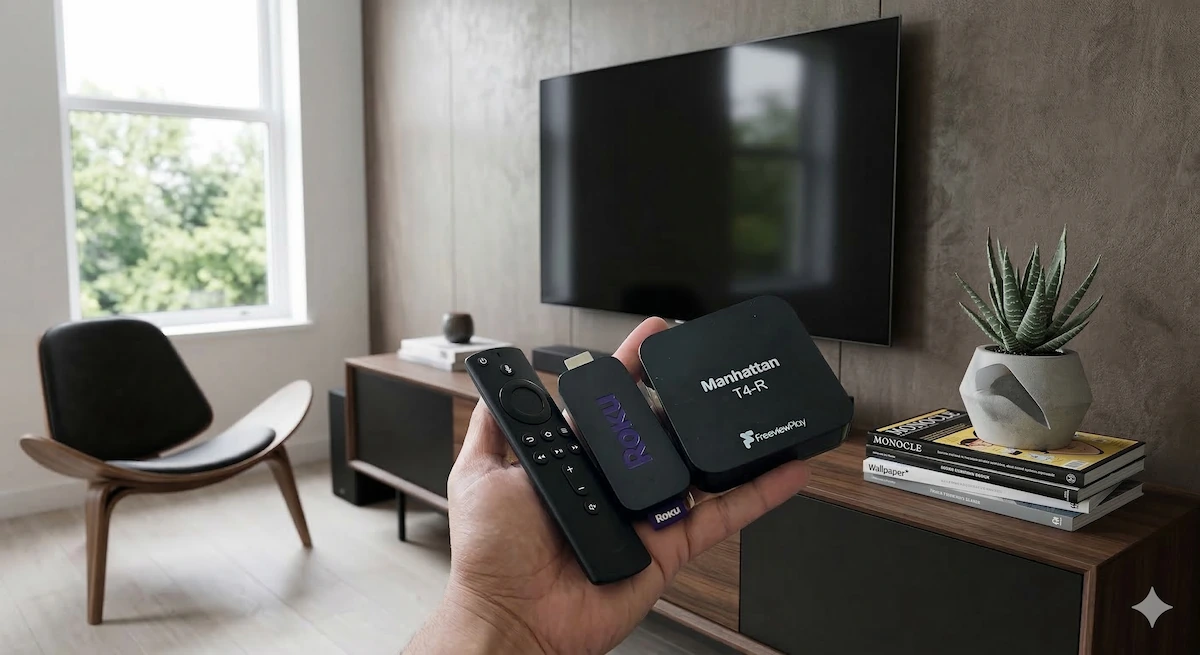
To make your TV smart, you simply need to plug a tiny device—often called a “streaming stick” or “dongle”—into the back of it.
Think of these little sticks as mini-computers. They have their own Wi-Fi receivers and computer chips inside. Once plugged into your TV’s HDMI port, they take over the screen, giving you a brand new, modern menu full of apps.
What You Need Before You Start:
- A TV with a spare HDMI port. (Usually found on the back or side).
- A home Wi-Fi connection.
- A spare wall power socket near the TV. (These sticks need power to run).
Which Device Should You Buy? (My 2026 UK Recommendations)
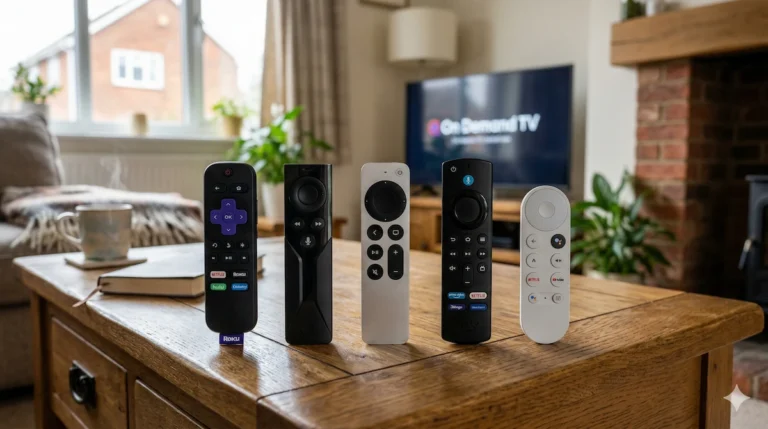
There are dozens of options out there, but through my own testing, these are the only three I recommend to friends and family in the UK.
1. The Best All-Rounder: Amazon Fire TV Stick 4K
The Fire Stick is the most popular choice for a reason. It is fast, supports stunning 4K video, and has every single UK catch-up app you could possibly want (U, BBC iPlayer, Channel 4, STV Player).
- The Best Feature: The remote control has “Alexa” voice search built-in. Instead of typing, you just hold a button and say, “Play The Traitors on BBC,” and it does the work for you.
- Best For: Prime members and those who want the biggest variety of apps. 👉 Check the latest price of the Fire TV Stick 4K on Amazon
2. The Easiest to Use: Roku Express 4K
If you find modern technology confusing, or you are buying a device for an elderly relative, get a Roku. Unlike Amazon, which clutters its screen with adverts and movie recommendations, the Roku menu is just a simple, clean grid of your chosen apps.
- The Best Feature: Absolute simplicity. It is almost impossible to get “lost” in the menus.
- Best For: Beginners, older users, and anyone who hates complicated menus. 👉 Check the latest price of the Roku Express 4K on Amazon
3. For the Traditionalist: Manhattan T4-R
If you want to turn your TV into a smart TV, but you also want to record traditional live TV (like pausing the BBC News or recording a whole series on ITV), a standard streaming stick won’t work. You need a dedicated Freeview Play Recorder.
- The Best Feature: Twin tuners let you record two live channels at once while connected to the internet for catch-up TV.
- Best For: People who want to ditch their expensive Sky/Virgin subscription but still love recording live TV. 👉 Read my full, hands-on Manhattan T4-R Review here
Step-by-Step: How to Set It Up (Takes 10 Minutes)
Once your chosen device arrives, setting it up is incredibly straightforward:
- Plug it in: Plug the streaming stick directly into an empty HDMI port on your TV.
- Power it up: Connect the stick to its power cable, and plug that cable into a wall socket. (Pro Tip: Do not plug the power cable into the TV’s USB port, as older TVs do not provide enough power and it will cause the stick to crash).
- Change the Channel: Use your original TV remote to change the “Source” or “Input” to the HDMI port you just used (e.g., HDMI 1 or HDMI 2).
- Follow the Screen: The streaming stick will wake up and display instructions on your TV. It will ask you to connect to your home Wi-Fi network and log in.
Frequently Asked Questions
Do I have to pay a monthly fee to use a streaming stick? No! Devices like the Fire Stick and Roku are a one-off purchase. Once you own the stick, watching apps like BBC iPlayer, ITVX, Channel 4, and YouTube is completely free. You only pay if you decide to sign up for premium apps like Netflix or Disney+.
Do I still need a rooftop aerial? If you buy a Fire Stick or a Roku, you do not need an aerial to watch catch-up TV or live TV via apps (like BBC iPlayer’s live channel feature). The TV signal comes entirely through your Wi-Fi router.
Will this make my old TV 4K? No. A streaming stick cannot upgrade the physical screen of your TV. If you plug a 4K Fire Stick into an older 1080p HD TV, it will still work perfectly, but the picture will simply display in standard HD.
“You absolutely do not need to throw away a perfectly good flat-screen TV just because it can’t connect to Wi-Fi. For under £40, a simple plug-in streaming stick will give it a completely new lease of life.
I’m curious: I’m always amazed by how long a good TV can last. How old is the ‘dumb’ TV you are trying to upgrade today, and which of these three streaming devices are you leaning toward? Let me know in the comments, and if you are still unsure which one will work best for your specific setup, just ask me below!”