Fire Stick Stuck on the Amazon Logo? How to Fix the ‘Boot Loop’ (2026)
Last Updated: March 2026
You have finally sat down on the sofa, snacks in hand, ready to binge your favorite show. You grab the remote, turn on the TV, and see the white Amazon logo.
And then… nothing happens. The screen goes black, the logo appears again, and the cycle repeats endlessly. Your Fire Stick is officially stuck in the dreaded “boot loop.”
Before you panic and throw the device in the bin, take a deep breath. In my experience fixing dozens of these streaming sticks, a boot loop rarely means the device is completely broken. In fact, the most common cause is actually incredibly simple to fix.
Here are the four exact steps you need to take to get your Fire Stick past the logo screen and back to your movies.
1. The #1 Culprit: Your Power Supply
This is the single most common reason a Fire Stick gets stuck on the loading screen.
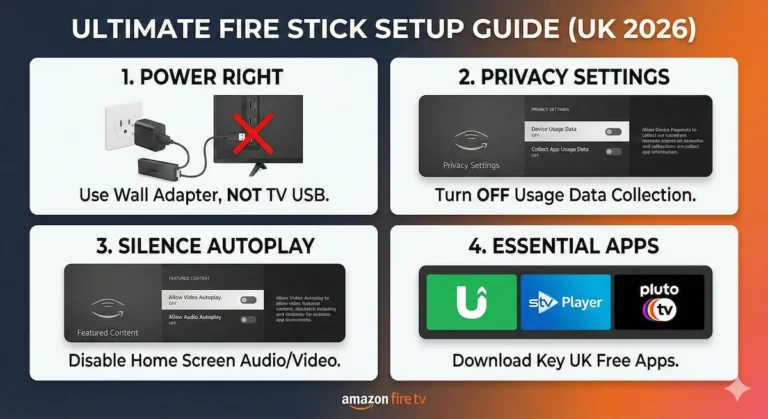
Most people plug the USB power cable directly into an empty USB port on the back of their TV because it looks much tidier. However, older flat-screen TVs simply do not output enough consistent electrical wattage to boot up the Fire Stick’s internal processor. The stick tries to turn on, runs out of power, crashes, and tries again.
The Fix:
- Unplug the USB cable from the back of your TV.
- Plug that USB cable into a proper wall mains adapter (like the one that came in the box).
- Plug it directly into a wall socket.
If you have lost the original plug, do not use a cheap, underpowered phone charger. You need an adapter that outputs at least 5V/1A. 👉 View the Official Amazon Fire TV Power Adapter here
2. The “Wait it Out” Scenario
Sometimes, your Fire Stick isn’t actually frozen at all.
Amazon frequently pushes massive software updates to these devices in the background. If your stick was in the middle of a major system update and got briefly interrupted, it will sit on the logo screen while it desperately tries to organize its internal files.
The Fix:
- Plug the Fire Stick into the wall power (as instructed in Step 1).
- Change your TV to the correct HDMI channel.
- Leave the room for exactly 25 minutes. Do not press any buttons on the remote. Do not unplug it. Just let it sit. Very often, it will eventually push through the update and the Home screen will magically appear.
3. The HDMI Extender Trick
Fire Sticks generate a surprising amount of heat. If your stick is plugged directly into the TV, wedged against the hot plastic back panel, it can easily overheat and crash during the startup sequence. Additionally, a slightly loose HDMI connection can scramble the video signal.
The Fix:
- Find the short, flexible HDMI extender cable that came in the original box.
- Plug the Fire Stick into the extender, and plug the extender into the TV.
This simple trick moves the stick away from the hot TV panel, giving it breathing room, and ensures a much tighter, more secure HDMI connection.
4. The “Blind” Factory Reset (The Nuclear Option)
If you have tried everything above and the stick is still looping, the internal software has likely corrupted. You need to factory reset the device.
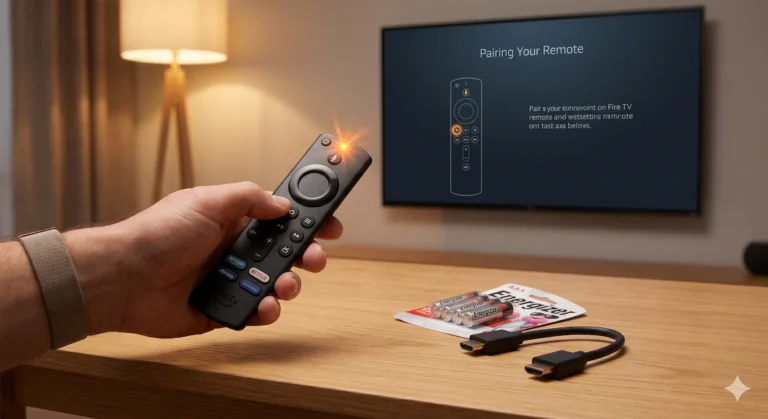
The problem? You can’t see the screen to navigate to the “Settings” menu. Fortunately, there is a secret remote control shortcut that forces a reset without needing to see the screen.
The Fix:
- Turn on the TV and leave the Fire Stick looping on the logo.
- On your remote, press and HOLD two buttons at exactly the same time:
- Right (on the circular directional ring)
- Back (the U-turn arrow button)
- Keep holding both buttons for at least 10 to 15 seconds.
- The screen should eventually go black and a message will appear saying your device is resetting to factory defaults.
Note: This will erase your downloaded apps and passwords, but it will save your hardware!
Is it Time to Upgrade?
If you have plugged the stick into a wall socket, waited 25 minutes, and tried the blind reset, but the Amazon logo is still staring back at you, I have some bad news.
The internal flash memory inside the stick has likely failed permanently. If your device is more than 3 or 4 years old, it has simply reached the end of its lifespan.
The good news is that the newer models are significantly faster and much less prone to these crashing issues. 👉 Check the price of the newest, lightning-fast Fire TV Stick 4K here
Now, I want to hear from you: I’m always curious to see which of these fixes is the most successful. Did plugging it into the wall finally break the loop, or did you have to use the “blind” reset trick? Let me know what worked for your specific setup in the comments below—your experience genuinely helps other readers who are stuck on the exact same problem!