Why Is My Fire Stick Remote Flashing Orange? (And How to Fix It)
You pick up your remote to pause the film, press a button, and… nothing happens.
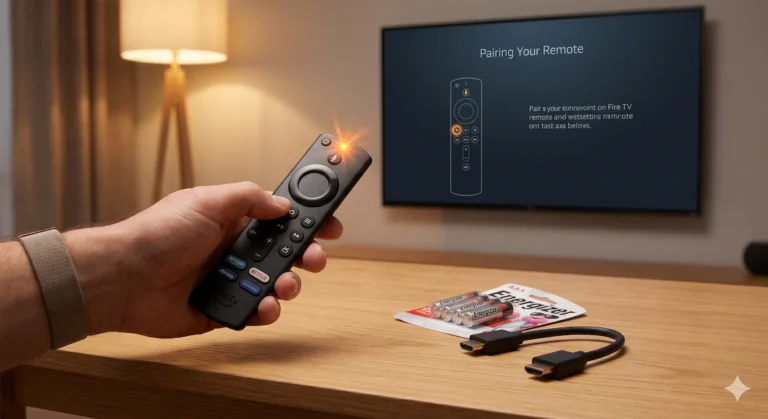
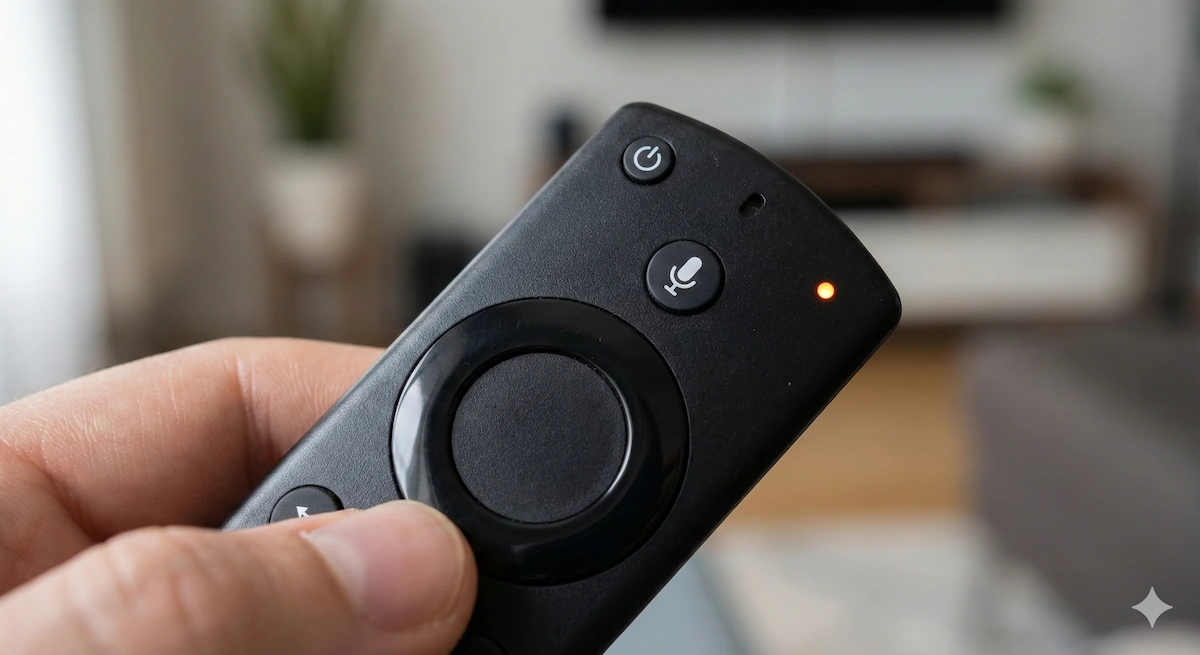
Instead, you see a small LED light at the top of the remote flashing Orange (or sometimes Yellow).
It is incredibly frustrating, especially when you are stuck on a menu you can’t control. But don’t panic. Your remote isn’t broken; it’s just confused.
A flashing orange light means your remote is in “Discovery Mode.” It is shouting out for a connection but your Fire Stick isn’t answering.
Here is the 3-minute guide to getting them talking again.
The “Turn It Off and On Again” (The 60-Second Fix)
Before you start pressing complex button combinations, try the “Golden Rule” of IT.
The issue is often that the Fire Stick itself has frozen, not the remote. The remote is trying to connect to a brain that is asleep.
- Unplug the Fire Stick from the mains power (at the wall socket, not just the TV USB port).
- Wait 60 seconds. (Do not cheat this! The capacitors need to drain).
- Plug it back in.
- Wait for the Home Screen to load fully.
- Press the Home button on your remote and hold it for 10 seconds.
Did the light turn Blue or stop flashing? You are fixed.
Fix #2: The Battery Trap
This is the most common cause. Even if your batteries aren’t “dead,” if they are low voltage, the remote puts out a weak Bluetooth signal. It has enough power to flash the orange light, but not enough power to maintain a solid connection.
- The Test: Swap the batteries for brand new alkaline ones.
- Avoid: Rechargeable batteries. Fire Stick remotes are notoriously fussy with rechargeables because they run at a slightly lower voltage (1.2V) than standard alkalines (1.5V).
Fix #3: The “Hard Reset” (The Nuclear Option)
If new batteries didn’t work, we need to wipe the remote’s memory and force it to forget the Fire Stick.
This requires a bit of finger gymnastics.
For most Fire TV Remotes (with volume buttons):
- Unplug your Fire TV Stick from the power again.
- Grab your remote. Place your thumb on the Left button (on the circle ring), the Menu button (three lines), and the Back button (arrow).
- Press and HOLD all three at the same time for 12 seconds.
- Release them and wait 5 seconds.
- Remove the batteries from the remote.
- Plug your Fire Stick back in and wait for the “Remote not detected” screen.
- Put the batteries back in.
- Press the Home button.
The light should flash blue quickly, indicating it has paired successfully.
Fix #4: The Emergency Backup (Use Your Phone)
If you have tried everything and the orange light is still mocking you, you can still watch TV tonight.
- Download the free “Amazon Fire TV” app on your iPhone or Android.
- Make sure your phone is on the same Wi-Fi as your TV.
- Open the app and tap your Fire Stick.
- A 4-digit code will appear on your TV. Type it into your phone.
Your phone screen is now a trackpad remote. You can use this to navigate the menus while you wait for a replacement remote to arrive.
Still Not Working?
If you have done the Hard Reset and changed the batteries, your remote hardware is likely faulty. This happens often if the remote has been dropped on a hard floor, cracking the internal antenna.
You have two options:
- Buy the Official Replacement: It guarantees compatibility and voice features. 👉 Check Price of Official Alexa Voice Remote
- Buy a Cheap “Dumb” Replacement: You can get third-party remotes for half the price. They don’t have Alexa voice control, but they change channels perfectly well. 👉 Check Price of Budget Replacement Remote