Freely TV Not Working? How to Fix ETV Error Codes and Buffering (2026)
Last Updated: May 2026
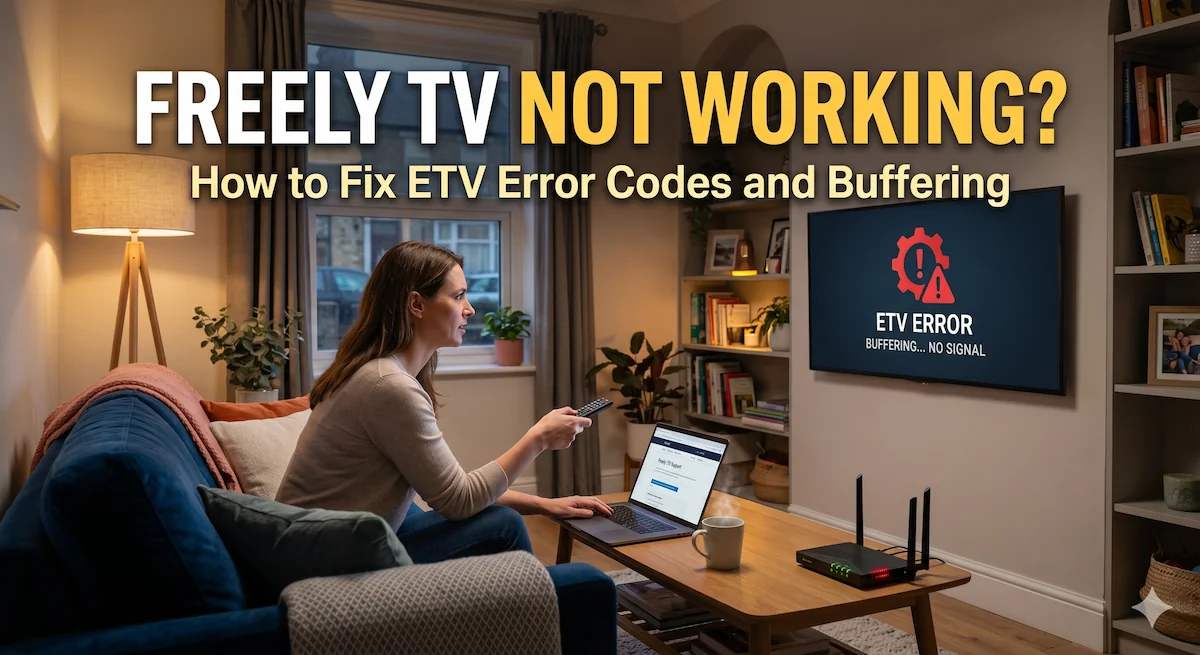
You just bought a beautiful new Smart TV, set up your Wi-Fi, and got ready to experience Freely—the UK’s brand-new, aerial-free successor to Freeview. But instead of watching live BBC or ITV, your screen freezes, or worse, pops up with a frustrating error code starting with the letters “ETV.”
Because Freely relies almost entirely on your home broadband rather than a traditional rooftop aerial, the way we troubleshoot our TVs has completely changed. If you are staring at a blank screen or a spinning wheel, don’t panic.
Here is exactly what those Freely error codes mean and how to fix them in under five minutes.
Why Do Freely Error Codes Start With “ETV”?
Before we dive into the fixes, it helps to understand how Freely’s software works. Whether you own a new Hisense, Toshiba, or Panasonic TV, the Freely platform uses a universal software system.
Whenever the software hits a roadblock, it generates a code starting with “ETV” (Everyone TV). If your error code does not start with ETV, the issue is with your TV manufacturer’s hardware, not the Freely app itself.
Here are the most common ETV codes and exactly how to banish them.
1. Error Code ETV104: The Internet Dropout
What it says: “Sorry, Freely can’t connect to the internet.”
This is by far the most common Freely error. Because live streaming requires a constant, uninterrupted flow of data, even a tiny micro-dropout in your Wi-Fi will cause Freely to panic and throw this code.
The Quick Fix:
- Grab your TV remote and navigate to your TV’s main Settings.
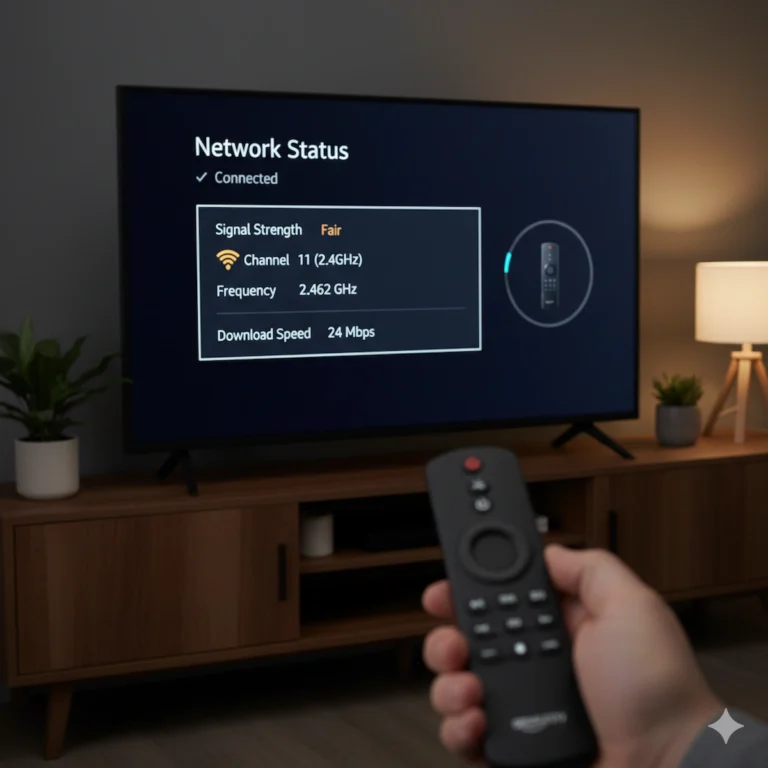
- Go to Network and check if your TV is still connected to your router.
- Unplug your internet router from the wall, wait exactly 60 seconds, and plug it back in.
The Permanent Fix (Stop the Buffering):
Freely recommends a minimum internet speed of 10 Mbps for reliable live TV. However, if your router is in the hallway and your TV is in the living room, thick brick walls will destroy that signal. The absolute best way to banish ETV104 forever is to bypass Wi-Fi entirely.
- Buy a cheap, long Ethernet cable and run it directly from your router to the back of your TV. View high-speed, flat Ethernet cables that hide under carpets here
- If the router is too far away, a Mesh Wi-Fi System will blanket your living room in a flawless signal. Check out my top recommended Mesh Wi-Fi Systems for UK homes here
2. Error Code ETV303: The Tuning Glitch
What it says: “There is an issue tuning to a specific channel.”
Even though Freely uses the internet, it still organises channels via a digital TV Guide. If broadcasters update their channel numbers or frequencies in the background, your TV can get confused and fail to load the channel.
The Fix (The Rescan):
- Press the Home button on your remote.
- Navigate left to the Settings menu.
- Select Channel, then choose Auto Scan (or Rescan).
- Let the TV run its process. This forces Freely to fetch the freshest, most up-to-date channel list directly from the servers.
3. Error Codes ETV401 & ETV503: The Cloud Crash
What it says: “Sorry, the TV Guide is unavailable” (401) or “Sorry, Search is unavailable” (503).
These codes are actually good news, because they mean your TV and your internet are working perfectly! These codes mean that the main Freely cloud servers are temporarily overwhelmed or undergoing maintenance.
The Fix:
You usually just need to wait this one out. However, you can try a “Power Cycle” to force your TV to reconnect to the servers:
- Turn off your TV with the remote.
- Turn it off at the wall plug.
- Wait 5 minutes, turn it back on, and try opening the TV Guide again.
4. The Last Resort: Reinstalling the Freely App
If you are getting a generic error like ETV900 (“Something went wrong”), or if the app is completely frozen and unresponsive, the background software has likely crashed. You need to uninstall and reinstall the Freely service.
How to do it on most Freely TVs:
- Press Home and navigate left to Settings.
- Go to System > Application Settings (or Freely Settings).
- Select Freely, then click Uninstall App (or Uninstall Services).
- Once it is removed, return to your home screen. You will see the Freely icon waiting for you—click it, and follow the on-screen instructions to reinstall a fresh, bug-free version.
Now, over to you: Switching from an old-school aerial to Wi-Fi-based live TV is a big jump, and it comes with a few growing pains! Which ETV error code were you staring at today, and did the router reset fix it, or did you have to run a full channel rescan? Let me know in the comments below—your experience genuinely helps other readers fix their shiny new TVs!